
How to add readable captions to a video online
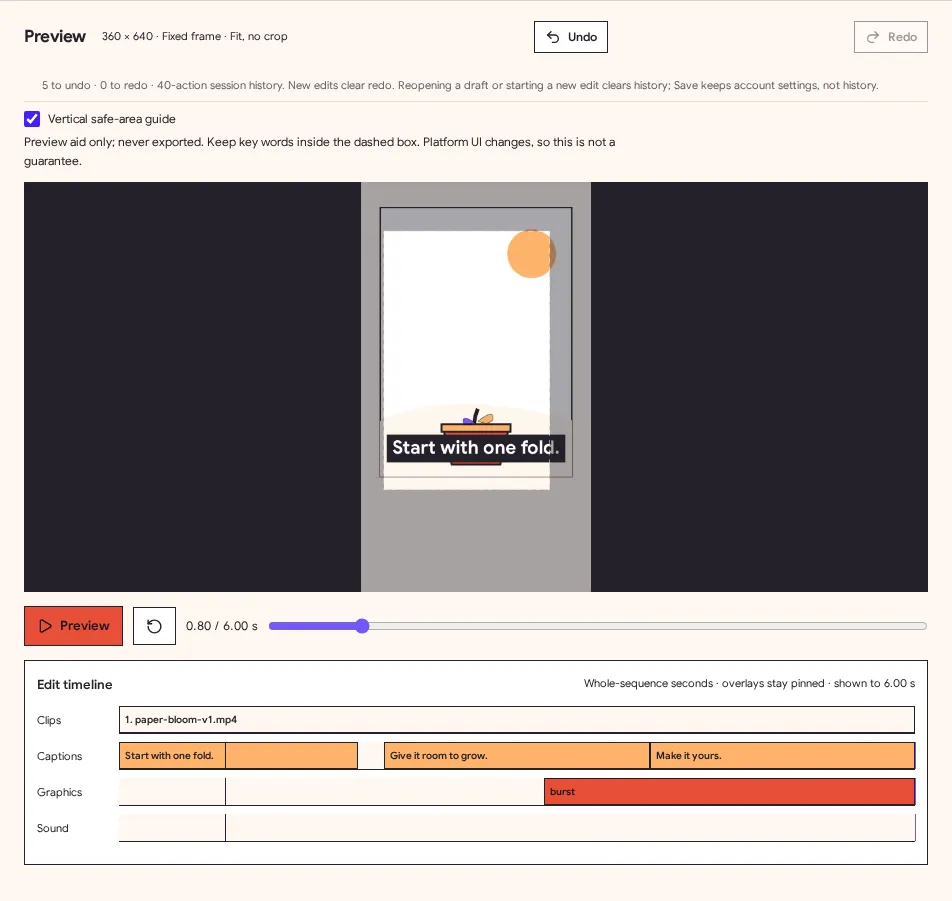
To add captions to a video online, write short text blocks, set when each appears, and choose a clear text-and-background combination. Keep each block to one or two lines and place it away from the action. Preview the whole video to check that viewers have time to read every line before you export.
What makes video captions readable?
Readable captions stay visible against changing footage and give viewers enough time to follow the words. Start with white text on a dark background, a consistent position, and short phrases. A colorful look can add personality, but the words still need to work on the brightest and busiest frames.
Section508.gov’s caption guidance recommends no more than two lines at a time, synchronization with the audio, and enough screen time to read the text. For a spoken video, include the dialogue and important sounds; decorative text alone does not replace captions for someone watching without hearing the audio.
How to add captions to a video online: try six seconds
Open PopSauce’s editable Paper bloom sample in a browser. It’s an original six-second portrait video with three captions and a graphic already in place. You can change the words, timing and look, then Preview without signing up or supplying footage.
This exercise uses creative text over the bloom animation. PopSauce captions are manual: you write the words and set their timing. They are not generated from speech.
1. Replace the first caption with one short thought
Choose Captions, then select the first caption, “Start with a little spark.” In Caption text, replace it with:
Start with one fold.
Leave the other two captions as “Give it room to grow.” and “Make it yours.” Each block now carries a single thought rather than a paragraph. When captioning your own spoken clip, split at natural phrase breaks while preserving the speaker’s meaning.
2. Give the first line a deliberate end
Set the first caption’s Start (s) to 0 and End (s) to 1.8. The other two captions remain at 2–4 and 4–6 seconds. Times refer to the whole edited video, not to an individual clip.
That creates a short pause before the second line. It’s a creative timing choice for this animation, not a universal reading-speed rule. If you can’t comfortably read the first line before it disappears, extend its end toward 2 seconds. For speech, match caption changes to what you actually hear rather than copying these sample timings.
3. Apply a look before making final style tweaks
Choose Looks, then Coral punch. Review the scope with Caption styling and Graphic styling and shapes selected, then press Apply look.
The look changes visual properties across the existing captions and graphic; it keeps your words and seconds. It can replace earlier size or position choices, so do your final readability adjustments afterward. Use Undo if you prefer the previous appearance.
4. Make the first caption easy to spot
Return to Captions and select “Start with one fold.” Use these starting settings:
| Control | Setting | Why start here? |
|---|---|---|
| Text color | White | Clear against the dark text background |
| Text background | Ink | Keeps bright footage from washing out the words |
| Bold text | On | Gives the short phrase a firm, readable shape |
| Text size (% of short edge) | 8 | Makes this short line larger than the look’s default |
| Caption X (%) | 50 | Centers the line horizontally |
| Caption Y (%) | 65 | Lifts the line away from the bottom edge |
These settings fit this sample, not every video. Check that the line doesn’t cover the detail you want viewers to notice. If a longer caption wraps into several lines, shorten the block before shrinking the text.
Enable Vertical safe-area guide in the preview to help judge placement. The guide is a preview aid and isn’t exported; platform buttons and overlays vary, so it cannot guarantee that text will stay unobstructed everywhere.
5. Preview from the start, then fix one thing
Move the preview playhead to 0 and press Preview. Watch all six seconds rather than judging a single frame.
- Can you read the first line before
1.8seconds? - Does the pause before the next caption feel intentional?
- Do the words stay clear as the bloom changes?
- Does any caption hide the pot, flower or another important detail?
Pause and adjust whichever issue you notice first. Then Preview again. Once the sample feels right, bring the same process to your own clip: short blocks, accurate timing, clear contrast, and a full playback check.
Save and export after the captions read well
Sign in when you’re ready to save settings to your account or export. Keep your original files: account drafts retain edit settings, while media stays on the device.
Free exports are watermark-free WebM, with a 720- or 1080-pixel longest side, in current desktop Chrome or Edge with WebCodecs support. Keep the tab visible during rendering. Phones and other browsers may support editing where codecs work, but export is not certified there. MP4 is not currently available to buy; check that your intended sharing destination accepts WebM before finishing your edit.